
Amazon Firestick is one of the most popular streaming devices in the world — and for good reason. It’s affordable, portable, and incredibly easy to use. But did you know your firestick can do a lot more than just run Netflix or Prime Video? With 4K IPTV on Firestick, you can unlock 10,000+ live TV channels, 24,000+ movies, and live sports — all at a fraction of the cost of cable TV.
In this complete step-by-step IPTV Firestick setup guide, we’ll walk you through everything you need to get started with 4KTVPlan on your Firestick in 2026 — even if you’ve never done it before. No technical knowledge required!
✅ What You’ll Need: An Amazon Firestick (any model), a stable internet connection (minimum 10 Mbps recommended), and an active 4KTVPlan IPTV subscription.
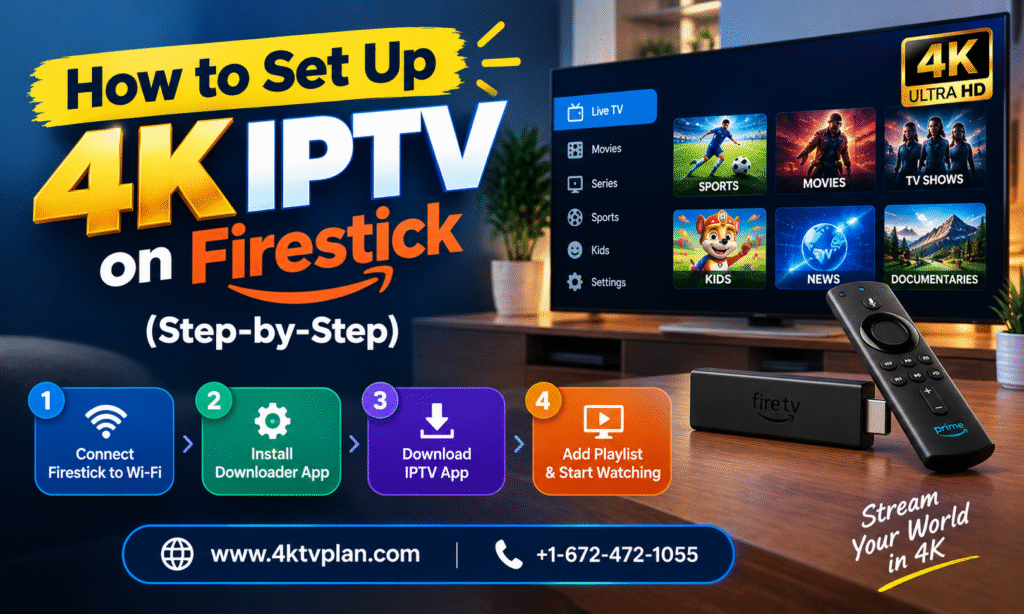
📋 Table of Contents
- Why Use Firestick for IPTV?
- Before You Start — Requirements
- Step 1: Enable Unknown Sources on Firestick
- Step 2: Install the Downloader App
- Step 3: Install IPTV Smarters Pro or TiViMate
- Step 4: Add Your 4KTVPlan M3U Playlist
- Step 5: Start Streaming Live TV
- Best Firestick Settings for 4K IPTV
- Troubleshooting Common Issues
- Frequently Asked Questions
1. Why Use Firestick for IPTV Streaming?
The Amazon Firestick for IPTV is one of the best combinations in the streaming world today. Here’s why millions of cord-cutters prefer Firestick over other devices for their IPTV experience:
- Affordable: Firestick costs as little as $24.99 — a one-time purchase that lasts for years.
- Portable: Plug it into any TV with an HDMI port, at home or while traveling.
- Powerful: Firestick 4K Max supports 4K Ultra HD streaming with Dolby Vision and HDR10+.
- Easy to use: The remote-based navigation is simple even for non-tech users.
- Compatible: Works perfectly with top IPTV apps like IPTV Smarters Pro and TiViMate.
When paired with an affordable IPTV subscription like 4KTVPlan, your Firestick becomes a complete entertainment powerhouse — replacing cable TV, Netflix, and every other streaming service you pay for separately.
🔥 Don’t have an IPTV subscription yet?
👉 Get Your 4KTVPlan Subscription — Starting at $12.50/month
2. Before You Start — Requirements
Before we dive into the IPTV setup on Firestick, make sure you have everything ready:
| Requirement | Details |
|---|---|
| Amazon Firestick | Any model — Firestick Lite, HD, 4K, or 4K Max |
| Internet Connection | Minimum 10 Mbps for HD, 25 Mbps for 4K streaming |
| 4KTVPlan Subscription | M3U URL or Xtream Codes (sent via email after purchase) |
| IPTV App | IPTV Smarters Pro or TiViMate (we’ll install this) |
| Amazon Account | Already logged in on your Firestick |
💡 Pro Tip: For the best 4K IPTV streaming experience, we recommend using the Firestick 4K Max model. It supports Wi-Fi 6 which gives you faster and more stable connectivity — essential for buffer-free 4K streaming.
3. Step 1 — Enable Unknown Sources on Firestick
By default, Firestick only allows apps from the Amazon App Store. To install IPTV apps on Firestick like IPTV Smarters Pro or TiViMate, you need to enable “Apps from Unknown Sources” first. Don’t worry — this is completely safe and takes less than a minute.
1 Go to Firestick Home Screen
Press the Home button on your remote to go to the main screen.
2 Open Settings
Navigate to the top menu and click on Settings (the gear icon on the right side).
3 Go to My Fire TV
Scroll down and select My Fire TV (on older Firesticks, this may be labeled as Device).
4 Select Developer Options
Click on Developer Options from the list.
5 Enable Apps from Unknown Sources
Toggle Apps from Unknown Sources to ON. A warning popup will appear — click Turn On to confirm.
✅ Done! Your Firestick is now ready to install third-party IPTV apps. Let’s move to the next step.
4. Step 2 — Install the Downloader App
The Downloader app is a free tool available on the Amazon App Store that lets you download and install apps directly from the internet onto your Firestick. This is the easiest way to sideload IPTV apps on Firestick.
1 Go to the Search Bar
From the Firestick home screen, click on the Search icon (magnifying glass) at the top left.
2 Search for “Downloader”
Type Downloader using the on-screen keyboard and press Search.
3 Install the App
Select the Downloader app by AFTVnews (orange icon) from the results and click Download or Get. Wait for it to install.
4 Open Downloader
Once installed, open the Downloader app. Allow any permissions it requests.
💡 Note: You also need to enable Downloader to install apps. Go to Settings → My Fire TV → Developer Options and turn on Allow apps from Downloader.
5. Step 3 — Install IPTV Smarters Pro or TiViMate
Now it’s time to install your IPTV player app. We recommend two options — both work perfectly with 4KTVPlan:
| App | Best For | Price | Our Rating |
|---|---|---|---|
| IPTV Smarters Pro | Beginners, simple interface | Free | ⭐⭐⭐⭐ |
| TiViMate | Advanced users, best UI | Free (Premium $4.99/year) | ⭐⭐⭐⭐⭐ |
Install IPTV Smarters Pro on Firestick
1 Open Downloader App
Launch the Downloader app you installed in Step 2.
2 Enter the URL
In the URL bar, type: https://www.iptvsmarters.com and click Go. Download the APK file from their official website.
3 Install the APK
Once downloaded, click Install and wait for the installation to complete. Then click Done.
Install TiViMate on Firestick
1 Search on Amazon App Store
TiViMate is available directly on the Amazon App Store. Search for “TiViMate” and install it for free.
💡 Our Recommendation: If you’re a first-time IPTV user, start with IPTV Smarters Pro — it’s the most beginner-friendly. If you want the best experience with EPG (Electronic Program Guide) and recording features, go with TiViMate. Both work flawlessly with 4KTVPlan. See our full app comparison tutorial here.
6. Step 4 — Add Your 4KTVPlan M3U Playlist
This is the most important step — connecting your 4KTVPlan IPTV subscription to the app. After purchasing your plan from 4KTVPlan, you’ll receive your login credentials via email. These include either an M3U URL or Xtream Codes.
Adding M3U URL in IPTV Smarters Pro
1 Open IPTV Smarters Pro
Launch the app from your Firestick home screen or apps section.
2 Select “Add User”
On the welcome screen, tap on Add User or Login with Xtream Codes API.
3 Enter Your Credentials
Enter the following details from your 4KTVPlan email:
— Username
— Password
— Server URL
4 Click Add User
Tap Add User and wait for the app to load your channel list. This may take 30–60 seconds depending on your internet speed.
Adding M3U URL in TiViMate
1 Open TiViMate
Launch TiViMate on your Firestick.
2 Go to Settings → Playlists
Navigate to Settings from the sidebar and select Playlists → Add Playlist.
3 Enter M3U URL
Select M3U playlist and enter the M3U URL provided in your 4KTVPlan welcome email. Give it a name like “4KTVPlan” and tap Add.
4 Wait for Channels to Load
TiViMate will now fetch all your channels, VOD content, and EPG data. Once done, you’re ready to stream!
📧 Don’t have your M3U URL yet? Contact our 24/7 support team on WhatsApp and we’ll send your credentials instantly.
7. Step 5 — Start Streaming Live TV in 4K!
Congratulations! Your IPTV Firestick setup is now complete. Here’s what you can do now:
- 📺 Browse 10,000+ live TV channels from USA, UK, Canada, India, Middle East, and more
- 🎬 Access 24,000+ movies and 7,000+ TV series on demand
- 🏆 Watch live sports — NFL, NBA, Premier League, UFC, WWE, F1, cricket, and boxing
- 📡 Enjoy PPV events at no extra charge
- 🔵 Stream everything in stunning 4K Ultra HD and Full HD quality
Want to know what channels are available? Browse our complete IPTV channel list here.
🚀 Ready to cut the cord?
👉 Subscribe to 4KTVPlan — Starting at Just $12.50/Month
8. Best Firestick Settings for 4K IPTV Streaming
To get the absolute best performance out of your 4K IPTV Firestick setup, tweak these settings:
Enable 4K Display Output
Go to Settings → Display & Sounds → Display → Video Resolution and set it to 2160p (4K). Make sure your TV supports 4K as well.
Use Ethernet Instead of Wi-Fi
For truly buffer-free 4K streaming, use an Amazon Ethernet Adapter for Firestick. A wired connection is always more stable than Wi-Fi, especially for 4K IPTV content.
Clear Cache Regularly
Go to Settings → Applications → Manage Installed Applications, select your IPTV app, and tap Clear Cache every few weeks to keep performance smooth.
Disable Auto-Updates
Go to Settings → My Fire TV → About → Check for System Updates. Keeping auto-updates off during streaming prevents unexpected interruptions.
Use a VPN (Optional)
If you travel frequently or want extra privacy while streaming IPTV, consider using a VPN on your Firestick. This also helps bypass any regional restrictions on content.
💡 Internet Speed Guide for IPTV:
SD Quality — 5 Mbps minimum
HD Quality (720p/1080p) — 10–15 Mbps
4K Ultra HD — 25 Mbps or higher
9. Troubleshooting Common IPTV Firestick Issues
Running into a problem? Here are the most common IPTV buffering and streaming issues on Firestick and how to fix them:
| Problem | Solution |
|---|---|
| Buffering / Freezing | Check internet speed (min 10 Mbps for HD). Clear app cache. Switch to Ethernet. |
| Channels not loading | Verify your M3U URL is correct. Contact 4KTVPlan support. |
| App crashing | Clear cache and data. Reinstall the IPTV app. Restart Firestick. |
| No EPG / TV Guide | In app settings, enable EPG and re-enter your playlist URL. Wait for guide to load. |
| Black screen on some channels | Try switching the video player within the app (ExoPlayer → VLC or vice versa). |
| Subscription expired | Renew your 4KTVPlan subscription here. |
Still having issues? Our 24/7 IPTV support team is always available to help. Contact us on WhatsApp anytime and we’ll resolve your issue within minutes.
10. Frequently Asked Questions (FAQs)
Is IPTV legal on Firestick?
Using an IPTV service on Firestick is completely legal as long as you subscribe to a legitimate, licensed IPTV provider. 4KTVPlan is a legitimate IPTV service provider offering licensed content to subscribers worldwide.
Which Firestick model is best for 4K IPTV?
The Amazon Firestick 4K Max is the best model for IPTV in 2026. It supports 4K Ultra HD, HDR10+, Dolby Vision, and Wi-Fi 6 — making it the most powerful and future-proof option for seamless 4K IPTV streaming.
Can I use 4KTVPlan on multiple devices?
Yes! 4KTVPlan supports multiple connections depending on your subscription plan. You can use it on Firestick, Smart TV, Android, iPhone, and more simultaneously. Check our multi-connection plans here.
Do I need a VPN for IPTV on Firestick?
A VPN is not required to use 4KTVPlan, but it can enhance your privacy and help bypass any ISP throttling that may cause buffering. We recommend ExpressVPN or NordVPN for the best IPTV streaming experience.
How do I get my M3U URL from 4KTVPlan?
After purchasing your subscription from 4KTVPlan, your M3U URL and login credentials are automatically sent to your registered email address within minutes. If you don’t receive it, contact our support team.
Is there a free trial available?
Yes! 4KTVPlan offers a 24-hour free IPTV trial so you can test our service before subscribing. Contact us on WhatsApp to claim your free trial — no credit card required.
Conclusion
Setting up 4K IPTV on Firestick is easier than most people think. With just a few simple steps — enabling unknown sources, installing a quality IPTV app, and adding your 4KTVPlan subscription — you can transform your Firestick into the ultimate entertainment device.
Say goodbye to overpriced cable TV and enjoy 10,000+ live channels, 4K streaming, live sports, and unlimited VOD content — all from your Firestick, starting at just $12.50/month.

Ready to get started? Explore more from 4KTVPlan: